Installing Flutter in Windows
Flutter is an open source framework made by Google. It enables a developer to create native cross-platform apps from a single codebase. This means that you can develop Android, iOS, Web, and Desktop apps at the same time in a single codebase.


What is Flutter?
Flutter is an open source framework made by Google. It enables a developer to create native cross-platform apps from a single codebase. This means that you can develop Android, iOS, Web, and Desktop apps at the same time in a single codebase. Flutter is mainly used for developing mobile apps but its use can be extended to developing web and desktop apps.
Flutter Installation
Install Flutter
- Download the Flutter SDK from the installation page.
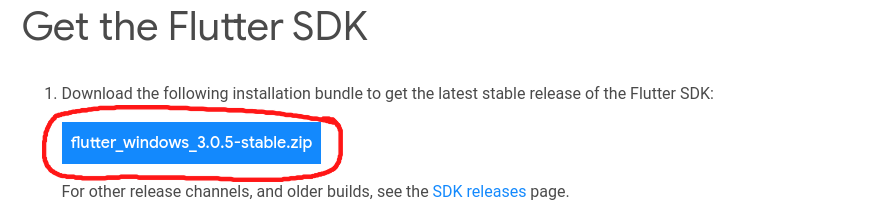
2. Extract the files to your Documents folder; it should be located in C:\Users\YourUsername\Documents.
Update your Path
- Open your search bar and type
env. Click on Edit environment variables for your account. UnderUser variablescheck if there is an entry called Path. - Click on Path, then click on Edit.
- Click on New and add the following to your Path:
C:\Users\ReplaceThisWithYourUsername\Documents\flutter\binVerifying the Configuration
We have to make sure that Flutter has been configured correctly.
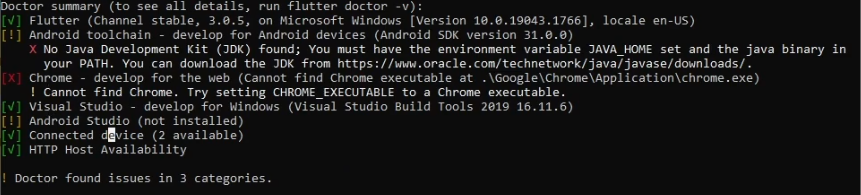
Open a new terminal and run flutter doctor. *Make sure that you opened a new terminal.
If the command successfully runs, it will look similar to this:
Android Setup
- Download and install Android Studio.
- Start Android Studio, and go through the ‘Android Studio Setup Wizard’. This installs the latest Android SDK, Android SDK Command-line Tools, and Android SDK Build-Tools, which are required by Flutter when developing for Android.
- Run
flutter doctorto confirm that Flutter has located your installation of Android Studio. If Flutter cannot locate it, runflutter config --android-studio-dir <directory>to set the directory that Android Studio is installed to.
Android Virtual Emulator Setup
I highly recommend following the Video Version for this part
- Enable VM acceleration on your machine.
- Launch Android Studio, click on
More Actions>Virtual Device Manager>Create Virtual Device>Pixel 3a>Next>Next>Finish
For details on the above steps, see Managing AVDs.
Agree to Android Licenses
- Run
flutter doctor --android-licensesto agree to the licenses - Type
yfor every license agreement that shows up - If it shows an error, you have to install the android sdk command line tools
- Open Android Studio, click on
More Actions>SDK Manager>SDK Toolsand click on thecommand-line toolscheckbox. - Click
Applyand wait for it to install.
VS Code Setup
- Download and install VS Code
- Once it is opened, open the extensions tab and install the Flutter extension
- Open the Command Palette by pressing
Ctrl + Shift + P. - Type
new projectand selectFlutter: New Project - Select
Applicationand type any project name - Select a folder to create the project in and you're ready to go!